
Dee Count
This app is no longer be available on Apple’s App Store.
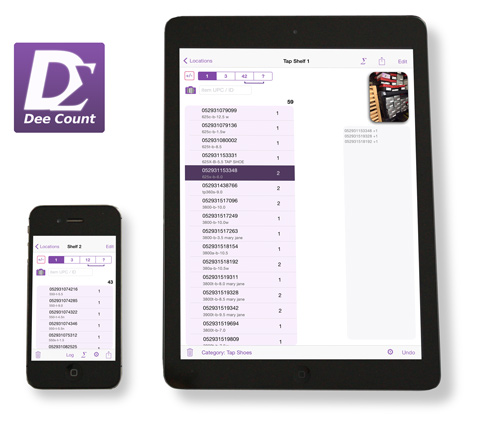
Dee Count began as a custom solution for a client and later made available to others for basic inventory counting and comparing by scanning bar codes with a tablet or phone. To help decide if this software is right for you, see a quick one-minute video, review the content here or the manual. In a nutshell, the goal is counting and comparing counts. For full inventory management, you may consider searching for other solutions first. Dee Count 2 requires iOS 8 or newer, and supports iPad and iPhone.
Note to version 1 users: the share button on the location is now for the location. See the share button in Total Counts to export totals.
Questions or suggestions? Fill out the form on the Software Support page.
Overview
Count inventory by scanning bar codes with the device’s camera, or a Bluetooth code scanner, and let the app count. For packages containing multiple items, choose a count-by value before entering the product UPC/ID. Optionally, you may choose a category for your items at a location. See the totals for all locations in the Total Counts (∑) menu or by category. To compare your counts, choose Reset Counts from the Tools (gear icon) menu, or export your totals to another device from the Total Counts share menu. You may also import inventory counts from your primary inventory software for comparison.
Dee Count is designed to count multiple small, manageable “locations” such as shelving units, pallets, or individual storage bins. Attach QR codes for quicker identification and name entry into Dee Count. (Tap the camera-QR icon to scan.) Working with small locations helps with recounts and finding products after counting by looking up the item details in Dee Count to see all the locations the item was counted at. See the Getting Started guide.
Disclaimer
As with any software, results are susceptible to input error and device limitations. It is advisable to include other counting methods or repeated trials. Store your primary inventory data in another software solution. Best results by breaking your area into small locations, and let the software add up the overall totals. Use of Dee Count is at your discretion.
Bar Code Scanning
A dedicated external scanner is optional, and allows the fastest counting experience. Choose a bar code scanner that is compatible with iPhone and iPad such as the Serialio Scanfob. Depending on the scanner, switching to on-screen keyboard may require scanning a code, or using an eject button. Dee Count is designed for working with a bar code scanner by limiting the need for frequent keyboard entry.
Scanning product bar codes with the built-in camera is also supported. Speed depends on the camera, quality of the bar code, and room lighting. The iPhone tends to perform better than iPad. The camera view remains open to continue scanning until dismissed. A blue rectangle indicates recognized code. The rectangle will flash green to indicate a counted entry. Preference option gives you the choice to add by tap or automatic. Note that in slide-over view (iOS 9) the camera will not be available for scanning.
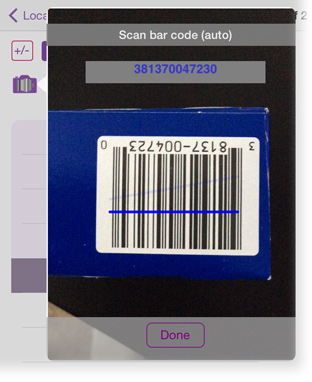
supported bar codes:
- UPC A&E
- EAN-13 and EAN-8
- UPC A and E
- Code128
- Code39
Scanning a location code, bar or QR, is automatic and closes the camera view on capture with the resulting text appearing in the location name entry box. Before counting, you may consider printing QR codes and attaching them to each shelf, clothing rack, or bin for quicker entry. On editing a location, tap the camera icon found beside the name box, and center the code in the camera view.
For products without bar codes, or codes in poor condition, you may consider picking a count-by value to help minimize manual entry. Additionally, tap a previously entered item on the list and select the increment (++) option to quickly add another count.
Categorize items
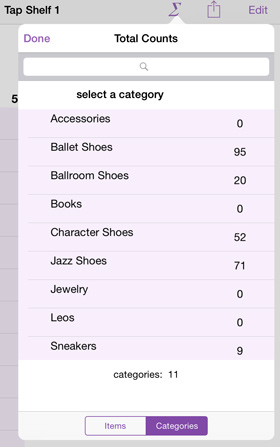
Set a default category for all items added to a location, or set a category to an item individually. Add up to 99 categories. Deleting a category sets the items in that category to none. Review total counts by category by selecting a category by selecting the category in Total Counts.
Recount and comparing counts
Support for comparing counts include importing inventory data from your primary inventory software along with descriptions, export counts to import on another device, or choose Reset Counts to turn your current counts into comparison quantity for each item so you may count again on the same device. You may also recount as you go by entering the same location again then delete one of them after a review. Do more with your counts by exporting to a spreadsheet via iCloud Drive, Dropbox, or open-in another app.
- review the import details page to follow an example
Preferences
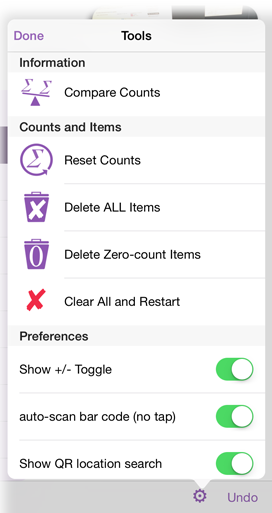
You’ll find preference options in the Tools menu (gear icon button) and also in the Settings app under Dee Count.
- Hide the +/- button to avoid accidental touches.
- Scan bar code with camera requires a tap by default to help avoid double-counts. Switch to auto-scan to add counts without tapping; watch for the green indicator and keeping the camera moving.
- If using QR codes for locations, turn on QR location search and a camera button will appear on the top-left corner of the locations list. Scan a QR and directly go to that location.
Another option available in the Settings app sets auto-select ID/UPC entry after selecting a location, so you’re ready to scan bar codes right away. This is the default on iPad.
Features
- any Bluetooth bar code scanner working like an external keyboard
- scan bar code with built-in camera
- scan a QR code to quickly enter location name
- increment or decrement item count
- review the location count log to find missed items or double counts
- import count comparisons optionally with item description
- open-in another app in CSV or DCZ (tab-separated) text formats
- iCloud Drive
- print total counts or counts for selected location
- include a photo to help identify a location
- categorize items or select default category for items added at a location
- store a value (price, weight, volume) for an item
- delete a location and all of its counts at once, or remove an item from a location
- view overall count totals or totals by category
- undo item count or deletion
- restart option erases all data and starts over
- generate QR code of location title to print or share
iPhone and iPad are trademarks of Apple.